split from here:
https://www.hifi-remote.com/forums/viewt ... p?t=100784
Barf, I signed up with Global Cache and got the Micca codes sent to me, in Pronto Hex format (I assume you did the same). Is there a way to import this file "as is" into IRScrutinizer, without cut & pasting each code one by one?
Using IRScrutinizer with Global Cache
Moderator: Moderators
-
The Robman
- Site Owner
- Posts: 22027
- Joined: Fri Aug 01, 2003 9:37 am
- Location: Chicago, IL
- Contact:
Using IRScrutinizer with Global Cache
Last edited by The Robman on Thu Jul 06, 2017 8:21 am, edited 1 time in total.
Rob
www.hifi-remote.com
Please don't PM me with remote questions, post them in the forums so all the experts can help!
www.hifi-remote.com
Please don't PM me with remote questions, post them in the forums so all the experts can help!
Sure. The file is in CSV ("comma separated values") format, with comma separating the fields. Importing in IrScrutinizer is similar to importing CSV in Excel. Select Import -> Text -> Raw. The name is contained in the first field of the CSV, so set "Name col." to 1. The data of the signal (in Pronto Hex) is the third field, so select 3 for "Raw signal col.". Leave the checkboxes unchecked. Since the fields are separated by commas, select the comma as the "Field separator". Now, in your mail reader, copy the content of the mail to the clipboard. Press "Load from clipboard" in IrScrutinizer. It should now look like this:
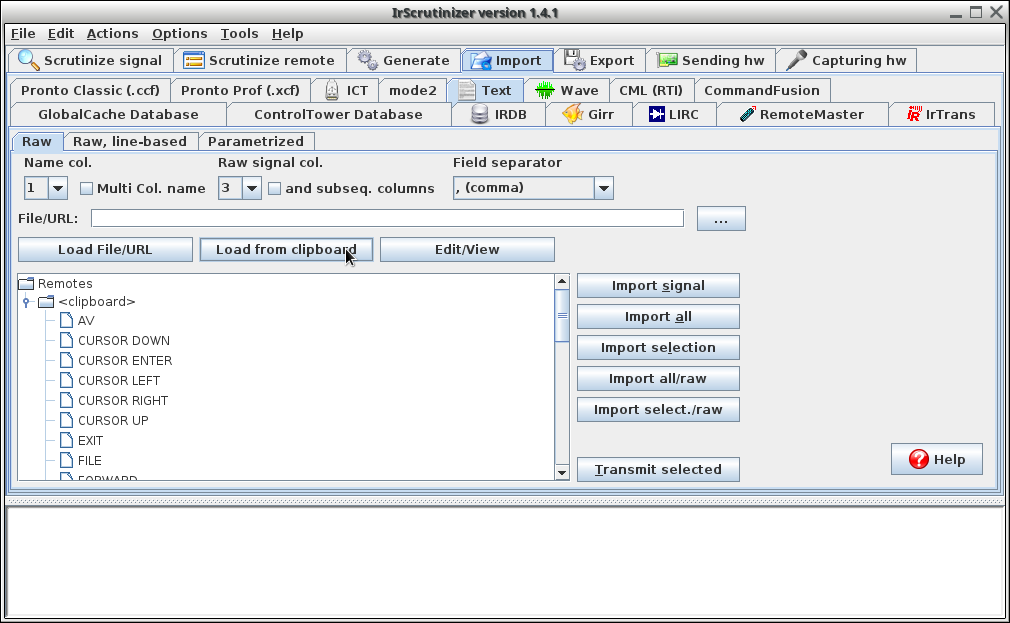
(Hovering over a command will show its decode as tool tip.)
Now press "Import all", and press "OK" on the pop-up. You are now taken to the parametric remote editor and can do desired editing there. There are some nice stuff in the context menu. For example, the comments are pretty silly, you can nuke them by right mouse button -> "Clear all comments". Select the export pane. Select RemoteMaster as "Export Format", and press "Export param. remote" (the table we just manipulated was the "parametric remote"). The rest is covered in the Wiki article linked above.
(Hovering over a command will show its decode as tool tip.)
Now press "Import all", and press "OK" on the pop-up. You are now taken to the parametric remote editor and can do desired editing there. There are some nice stuff in the context menu. For example, the comments are pretty silly, you can nuke them by right mouse button -> "Clear all comments". Select the export pane. Select RemoteMaster as "Export Format", and press "Export param. remote" (the table we just manipulated was the "parametric remote"). The rest is covered in the Wiki article linked above.
-
The Robman
- Site Owner
- Posts: 22027
- Joined: Fri Aug 01, 2003 9:37 am
- Location: Chicago, IL
- Contact:
Thanks Barf.
JR, I created the following RMDU file for you
https://www.hifi-remote.com/forums/dload ... e_id=14600
And for anyone else wanting to try to use IRScrutinizer for this purpose, when you first try exporting the generated RMDU file, you might have trouble finding where it got saved. There is a message on the screen saying where it is, but that folder didn't exist on my system. I did some poking around and eventually figured out what's up. What you need to do is go to the Export tab and notice the "Export dir." box, to the right of it is a box simply labeled "...", click on that and select the folder where you would like the RMDU to be saved, then go back and repeat the process to generate the RMDU and it will be saved there.
JR, I created the following RMDU file for you
https://www.hifi-remote.com/forums/dload ... e_id=14600
And for anyone else wanting to try to use IRScrutinizer for this purpose, when you first try exporting the generated RMDU file, you might have trouble finding where it got saved. There is a message on the screen saying where it is, but that folder didn't exist on my system. I did some poking around and eventually figured out what's up. What you need to do is go to the Export tab and notice the "Export dir." box, to the right of it is a box simply labeled "...", click on that and select the folder where you would like the RMDU to be saved, then go back and repeat the process to generate the RMDU and it will be saved there.
Rob
www.hifi-remote.com
Please don't PM me with remote questions, post them in the forums so all the experts can help!
www.hifi-remote.com
Please don't PM me with remote questions, post them in the forums so all the experts can help!
-
alanrichey
- Expert
- Posts: 3533
- Joined: Mon Mar 24, 2008 7:14 am
- Location: UK/USA
Having trouble with this bit. I am running 1.4.1 but when I select the Export Tab and the then the Export Format drop down menu I get only 4 entries: Girr, Pronto/Classic, Text and Wave. No sign of RemoteMaster. What am I missing ?Barf wrote:Select the export pane. Select RemoteMaster as "Export Format", and press "Export param. remote"
-
alanrichey
- Expert
- Posts: 3533
- Joined: Mon Mar 24, 2008 7:14 am
- Location: UK/USA

Just a few comments:The Robman wrote:... when you first try exporting the generated RMDU file, you might have trouble finding where it got saved. There is a message on the screen saying where it is, but that folder didn't exist on my system. I did some poking around and eventually figured out what's up. What you need to do is go to the Export tab and notice the "Export dir." box, to the right of it is a box simply labeled "...", click on that and select the folder where you would like the RMDU to be saved, then go back and repeat the process to generate the RMDU and it will be saved there.
The default for the export directory on Windows (something like %HOME%\AppData\Local\Temp\Export) is selected from official guidelines. If it does not exist, it is created when needed. If someone does not like it, it can be changed, as Rob describes. The changes are stored persistently.
The "Open" button next to the "..." will open an explorer window on the selected export diretory.
If unchecking "Automatic file names", there will be a file selector for each export, allowing arbitrary file paths.
The "Open last file" (available both on the export pane as button and in the Action pull down menu (as "Open last export file")) will "open" the last created export file, just as if double clicked from the explorer.
-
The Robman
- Site Owner
- Posts: 22027
- Joined: Fri Aug 01, 2003 9:37 am
- Location: Chicago, IL
- Contact:
I think the problem in my case was that, at some point along the way, I renamed my JP1 folder, and I must have previously selected an output folder in IRS. So, when I tried exporting the RMDU file, it tried to save it in a location that didn't exist, but it didn't complain or tell me that was the case, so I just kept trying to find where it had been saved, and of course, it hadn't.
So that's when I started the long quest of trying to determine where IRS was trying to save the file and change it.
So that's when I started the long quest of trying to determine where IRS was trying to save the file and change it.
Rob
www.hifi-remote.com
Please don't PM me with remote questions, post them in the forums so all the experts can help!
www.hifi-remote.com
Please don't PM me with remote questions, post them in the forums so all the experts can help!